Dezine DZ-GR100-WHT-BRW Men's Watch

Showing posts with label windows7 tips and tricks. Show all posts

Saturday, 31 May 2014

windows 7 beginners guide

Posted on 01:49 by Unknown

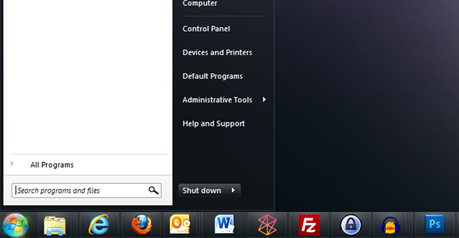
hide and unhide System tray icon's

Icons of windows stat up items like network,system message and antivirus,sounds etc..are minimized in system tray here the simple tips to hide and unhide icons in System tray.

Windows 7 allows you to hide and unhide icons in system tray using  simple Drag and drop method
you just click on icon and drag it into the system tray.

How to add/remove icons in windows 7 task-bar:
would you like to enable some of your favorite applications in windows task-bar?here the
simple steps to enable/disable icons in task bar.

STEP'S to enable Icons in windows Task-bar:
enabling icon's in task-bar is so easy just click on the icon you want to enable in task-bar tan drag
it on task-bar.
enable Icons in windows Task-bar

STEP'S to disable Icons from windows Task-bar
if you want to disable some unwanted icons from windows task-bar then right click on that
task-bar icon then select unpin this program from task-bar
disable-Icons-from-windows-Task-bar

FOR MORE TIPS AND TRICKS

HOW TO SPEED UP WINDOWS 7


Thursday, 29 May 2014

how to compress files using winrar

Posted on 04:17 by Unknown
sometimes you are looking t compress certain files to reduce that size with out loosing quality
WinRAR is the best tool reduce all kind of file size without loosing it's Quality.
how-to-compress-files-using-winrar

here the simple steps to compress files using WinRAR

STEP 1:
            go to the file you want to compress.

STEP 2:
            right click on that file then select Add to archive...from right click window
how-to-compress-files-using-winrar/winzip

STEP 3:
            now archive name and parameters window will open under that change compression
            method to Best
compress-files-using-winrar


STEP 4:
            finally click on OK button.it takes some time to complete compressing process.

Tuesday, 20 May 2014

how to create bootable usb windows xp/7/8

Posted on 22:37 by Unknown
how to create bootable usb for windows xp/7/8
how-to-create-bootable-usb

here the simple method to create bootable usb using RMPrep software...

STEP 1:
            click here to download full version of RMPrep and install it on your pc STEP 2:
         

how to create own chrome theme

Posted on 02:32 by Unknown

how to create own chrome theme:

Google chrome is one of the best browser in world because it's user friendly interface
and it loading time consumption.here the simple steps to make your chrome browser more
beautifully with your own theme.

Google provides free chrome application to create themes

STEP 1:
           click here to install Google chrome theme creator. STEP 2:
            here click on + FREE button then select ADD from popup window it will automatically reload
            your browser and redirected to chrome://apps page here you can see my chrome theme application
how-to-create-themes-for-chrome


STEP 3:
           now click on chrome theme application --->then select START MAKING THEME
how-to-create-themes-for-google-chrome

STEP 4:
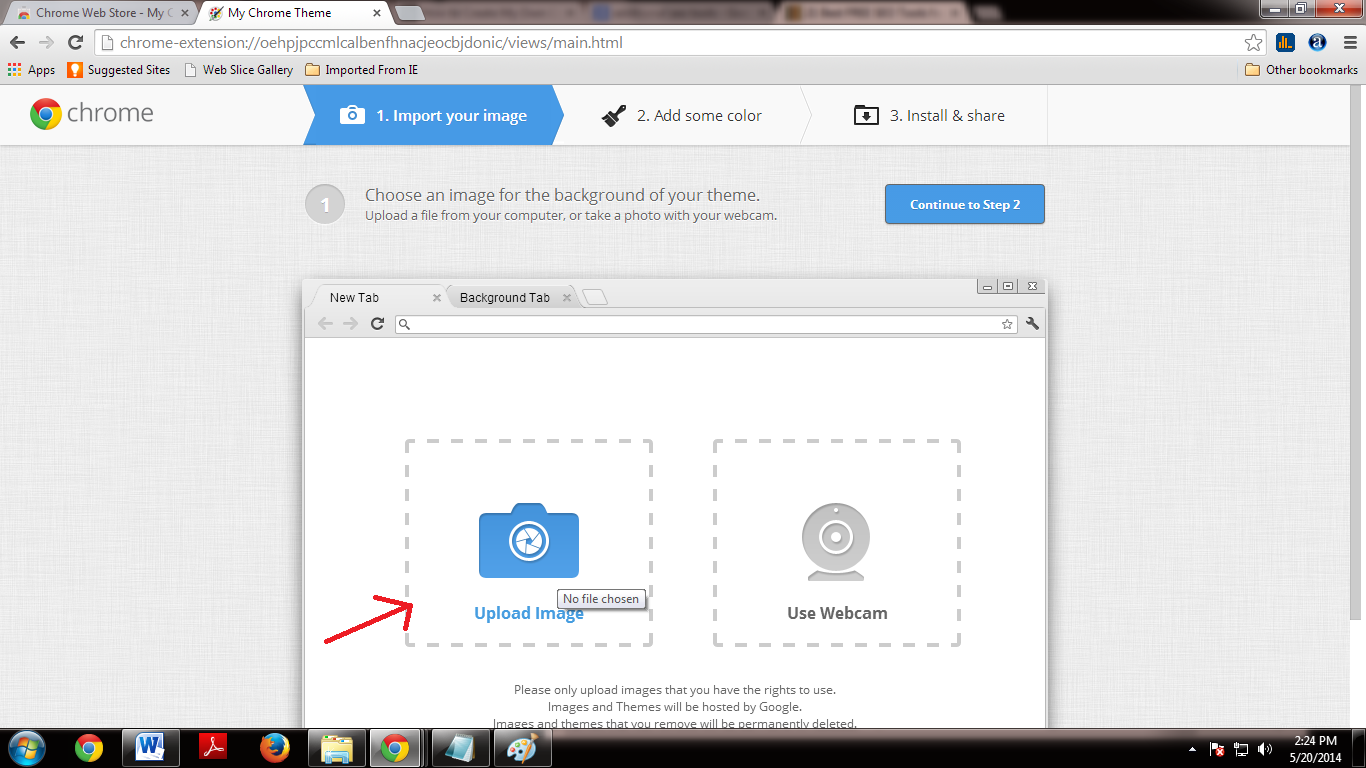
            click on upload window then select your own image from your system
           
how-to-create-themes-for-google-chrome-technology-tips
        then click on Adjust position tab then select Fit to screen

STEP 5:
            now select preview mode.then click on continue to Step2 button
how-to-create-themes-for-google-chrome-free

how-to-create-themes-for-google-chrome-tech tips and tricks

STEP 6:
           here you can edit toolbar color,new tab color and frame color after completion of editing process
          click on continue to Step 3 button
how-to-create-themes-for-google-chrome-tricks
STEP 7:
            here enter name for your theme then click on make my theme button
            it will create your theme now you can install and share your own theme...

how to play games without graphic card

Posted on 00:12 by Unknown
how to play games without graphic card

some of the games created with more graphics property.you can't play this games without
additional graphics card. here the simple solution to play all kind of games without
additional graphics card. 3D analyzer is an emulator it helps you to play all type of games
without additional graphics card
how-to-play-games-without-graphic-card

STEP 1:
       click here to download 3D analyzer

STEP 2:
      click on downloaded file and run analyzer.exe

STEP 3:
      now click on "select" button then open file path of the game you want to play

STEP 4:
      now click on RUN button....now you can play your Highresalution game on your low graphics
      card system

Monday, 19 May 2014

how to use a smartphone as a web camera

Posted on 04:26 by Unknown
how to use a mobile camera as a webcam
here the trick to use your mobile camera as a webcam
how-to-use-a-smartphone-as-a-web-camera

STEP 1:
            install  EpocCam application on your mobile click here to download for mobile 

STEP 2:
           EpocCam webcam application is available for iPhone,android ,and windows mobiles.

STEP 3:
           install driver on your pc
           click here to download  driver for your windows pc. STEP 4:
            After completion of installation process on both mobile phone and PC connect your phone to your      PC  using            USB cable in PC suite mode.

STEP 5:
            Now go to your phone click and start epoccam application.

STEP 6:
            Parallely start epoccam application on your PC.

STEP 7:
            Now you can enjoy  video chatting/recording using your mobile as a webcam.

Saturday, 10 May 2014

I hope every one of you using pendrive or memory card to keep your dada's. both pendrive and memory card are external storage devices it's helps to transfer data's from one to another place or system.some times pendrive may affected by shortcut virus while transferring data's .here the trick to remove shortcut virus from your USB drive or memory card.
virus infected files are looks only the shortcut you can't access this files and some files will be hidden.here the
simple command prompt cmd to remove shortcut virus.using this method you can able to remove shortcut virus and getback your
hidden files

STEP 1:
         plug your pen drive in to computer

STEP 2:
           press CTRL+R (or) go to start menu type cmd on search-bar then select  cmd from search result                  right click on that then select  run as administrator.
how-to-remove-shortcut-virus

STEP 3:
            now run window will open type cmd then press enter.

STEP 4:
          now command prompt window will open with default path(c:) change it with your pendrive  letter

STEP 5:
          for Example (your pen-drive letter is G:)
          type G: then hit enter
how-to-remove-shortcut-virus-from-pendrive

STEP 6:
          now type following command "attrib -h -s -r /s /d k:*.*" then hit enter it takes some time to complete             this   process.

STEP 7:
          after completion of process re-plug your drive now you can see your files.

Monday, 5 May 2014

Sometimes, when you plug a USB device to your Windows system, you may get the USB Device
Not Recognized 
pop up message.If your USB device is not detected here the solution to solve this problem
usb device not recognized

STEP 1:
       Go to start menu-->Run--> type devmgmt.msc-->Enter

STEP 2:
       now Device Manager window will appear under that click on Action-->then select Scan for hardware changes.

STEP 3:
       Open Control Panel -->select  Printers and devices then Check if you can see any entry for Unidentified USB device or Unknown Device
   
STEp 4:
           Open USB device Properties and update it's driver, if an update is found to be available.

How to Update USB Drivers in windows 8:


In order to update USB drivers in Windows 8, simply follow the given steps:

STEP 1:
             login to Windows 8 computer Desktop with the administrator privilege.
             on the desktop screen, move mouse pointer to the bottom right corner of the Desktop window.

STEP 2:
            From the displayed options-->click Settings.

STEP 3:
           Go to the Settings pane under that click Control Panel.
STEP 4:
          now control panel window will open from that window-->select the option  Hardware and Sound. STEP 5:
           select Device Manager<--from Devices and Printers category
STEP 6:
          On Device Manager window-->select the Universal Serial Bus controllers category.
STEP 7:
           Once expanded, right-click on the USB controller that is to be updated.
STEP 8:
           From the context menu click on Update Driver Software to update the driver of the selected USB                controller.

On the displayed box, click Search automatically for updated driver software to make the Windows to search for the updated driver from the Internet.

Wait up-to the selected driver gets updated , then click Close.

Note:internet connection is must for updation.

Saturday, 3 May 2014

Sometimes your USB devices may get some errors like this "disk is write protected" it does not allows you to format your device.
disk is write protected usb error solved


can't find the key StorageDevicePolicies? you have to create it manually.


STEP 1:
            Go to Start menu-->run-->then type regedit-->enter

STEP 2:
             then now your system regedit window will open  Right-click HKEY_LOCAL_MACHINE--                        >SYSTEM-->CurrrentContro­lSet-->Control--> and select New Key.

STEP 3:
             rename the file to StorageDevicePolicies.

STEP 4:
            right Click on the StorageDevicePolicies and select New DWORD and give it the name                                 WriteProtect.
STEP 5:
            Double click onWrite Protect and set its value to 0.

STEP 6:
           now format your USB drive before doing any changes.
method 2:
Sometimes,your usb drive is not allows you to copy paste files from a computer. And here the  solution to
fix the Disk Is Write Protected error .

 Follow this STEP'S To solve this problem,
STEP 1:
             go to My Computer --> your USB > right click and then properties.
STEP 2 :
             Go to security Tab under that select user--> edit and then click all the check box on the left side to                allow full control.
STEP 3:
             Now click on Ok--> and now you can use your USB with full permission.
Method 3:

if you are using transcend products like memory card/usb drive this method will helps you to solve your problem.transcend provides a tool to remove write protection to any transcend products.

STEP 1:
       click here to download online recovery tool

STEP 2:
      after completion of downloading process plug USB drive on computer then run recovery toolon your computer

STEP 3:
            
      Now select any one option from the listed two options. If you want to remove data and write protection then choose first option from list.
      This option will remove all the data's and write protection.

STEP 4:
      If you want to remove write protection only then choose second option from list, this one only remove write protection
      from the pen drive and keep your data safe.

STEP 5:
       after selecting desired option on recovery tool click on start button to complete the formatting process.

     In this way you can remove write protection to any pendrive/memory card. 


Wednesday, 2 April 2014

How to view my wifi password

Posted on 02:56 by Unknown
How to view my WiFi password:

here the simple trick to view your forge-ted WiFi password (or) WiFi password of your router
view-wifi-password


STEP 1:
         Go to start menu and type cmd on search box (Go-->Start-->cmd)

STEP 2:
           now your cmd prompt window will open under that enter following cmd

STEP 3:
            type "ipconfig" in cmd then hit enter
how-to-view-wifi-password


STEP 4:
           now copy Default gateway id from cmd prompt window (e.g:192.168.1.1)

STEP 5:
           GO to browser enter the default gateway id in to browser address bar then hit enter

STEP 6:
            here you are requested to enter user name and password
            enter user name:admin
            enter password :admin (or)1234
STEP 7:
          now you are entering into router admin panel under that
          select wireless network-->security here you can view your wi-fi password 

Thursday, 27 March 2014

How to set video as your desktop wallpaper

Posted on 00:05 by Unknown

STEP 1:
        recommended tools: VLC media player
        open vlc media player

STEP 2:
        now click on VLC media players TOOLS-->Preference (or) click CTRL+P combination on your                keyboard   then select select video from left panel.

STEP 3:
         now select DirectXx video output from output drop down list

STEP 4:
           save the  changes then restart vlc media player

STEP 5:
       now play any video file that you would like to set as desktop background wallpaper

STEP 6:
        now click on the video tab then select DirectXx video output from dropdown list

STEP 7:
       minimize your vlc media player now you can see your video as running on your desktop
       you don't want this uncheck   DirectXx video output

Thursday, 13 March 2014

here the solution for your question why  PC/laptop getting restarted automatically
Solution:-

1) There are so many reason for this PC/laptop problem

2) First there will be problem in SMPS

3) second there will be Problem in RAM

4) Third There will be Problem in HDD (BAD SECTOR)

5) Fourth There Will be Problem in Motherboard (Capacitor Problem) 

Friday, 28 February 2014

how to record desktop screen as video

Posted on 08:47 by Unknown
if you want to record your windows screen as a video and put it in you tube or some other social media pages here the tool to record your desktop activities.
how-to-record-desktop-as-video


ZD  Screen Recorder Soft captures your  computer desktop content with sound and saves as a compressed video files in your required formats. Everything you see on your desktop screen can be recorded continuously in a high frame rate.
 The result video is a clear reproduction of the screen content during the recording time and so is the sound.
 ZD soft screen recorder is also capable of taking screenshot images and saving pure audio files. ZD Soft  Screen Recorder is a powerful  tool to do screen recording related works. click here to download ZD recorder it will capture your desktop activities and convert it in to video files.

Thursday, 13 February 2014

how to add password to RAR/ZIP files

Posted on 06:53 by Unknown

Create password protected RAR/ZIP files:

create-password-protected-zip-folder

WinRAR and WinZIP files are  the best to share files over internet.but some times you want to protect your data's before share through internet here the trick to lock to your RAR/ZIP files using password without any software

Follow the steps to make your RAR/ZIP files more secure

STEP 1:
            Go to my computer and select the folder that you want to make is secure STEP 2:
           right click on selected folder and then select the option Add to archive

how-add-password-to-RAR-files
STEP 3:
            now Archive name and parameters popup window will open
            under General tab 1)set Archive format as you recommenced
                                       2)set compression method as Best
                                       3)and then select Lock archive option from archiving option
how-add-password-to-ZIP-files


STEP 4:
            now click on Advanced option under that click Set password option
how-create-password-protected-RAR-files

STEP 5:
           Enter password and Reenter password then select the option Encrypt file names
how-create-password-protected-ZIP-files

STEP 6:
          finally click on ok button

Tuesday, 11 February 2014

how to solve windows 7 black screen problem

Posted on 07:42 by Unknown
how to solve windows 7 black screen problem:
windows7_black_acreen_error

here the trick to solve windows 7/xp black screen error...

STEP 1:
            restart your computer and continuously press F8 key

STEP 2:
           Repair your computer and now windows is loading file

STEP 3:
            now press Next button on System recovery option window then press ok from next window
STEP 4:
             now select Start-up Repair option from System recovery option window
STEP 5:
             it can take up-to 10 minutes to repair your computer.after completion of
             start-up repair process click on Don't send button and  finish


STEP 6:
            then next you will try System restore option from system recovery options

STEP 7:
            click next-->select any restoration point-->then click next

            using command prompt
STEP 8:
             now select command prompt option from System recovery option window
   
STEP 9:
              now your command prompt window will appear
              under that type
              C:  then press enter
              type   dir then press enter
              now type cd \windows\system32\config  then press enter
              MD backup then press enter
              copy *.* backup then press enter and wait a few minutes upto it shows 7 files copied
              CD Regback
              Now you are in Regback folder
              type dir then press enter
              if any one of the value is 0 don't proceed following steps if non of this values are 0 follow the steps
       
             type copy *.* .. and hit enter
             and now enter a
             then Enter Exit and press enter button
STEP 10:
           and now you will press Restart button on System Recovery Option window

Monday, 10 February 2014

how to solve windows 7 is not genuine problem:
here the simple  trick to fix windows 7 is not Genuine error
some time you receive windows error message "this copy of Microsoft windows 7 is not Genuine error"
this problem is solved by simple command prompt code.
follow this steps to fix windows 7 is not Genuine error

STEP 1:
          Go to start menu and type cmd in start menu search box.
STEP 2:
          right click on cmd.exe file under that select Run as administrator.
STEP 3:
            now your command window will open with administrator privilege.
STEP 4:
            now type the following command in your cmd prompt window
            SLMGR-REARM
            once again make sure your cmd prompt window will run with administrator
            privilege it is important for fix this error
STEP 5:
            after entering above cmd press enter key
STEP 6:
            now confirmation popup window will appear it ask you to restart your computer to complete setup
            press ok button to complete the process
STEP 7:
           after restarting your computer you do not receive any error from windows operating system
how to lock your USB drive with password:
if you want to protect your USB drive from unknown users usage and keep your data's securely.
 here  the steps to protect your USB drive
USB-drive-with-password

STEP 1:
          click here to download USB drive security and install it into your
          USB drive
          use following keys to complete installation process.
          Serial: U2-453444412-1111
          Registration Key: 42F2BAD81844AC38FC5A46E21

STEP 2:
            after completion of installation process Auto-run file shows you two choice  first one is "open USB                    Flash Drive" and "protect this USB Drive"
STEP 3:
           under that select the option "protect the USB drive"

STEP 4:
             now pop up window will appear it ask you to password and confirm password to
            protect your drive.

STEP 5:
           enter password and confirm password then press protect button.
       
technology_tips_and_tricks
STEP 6:
          wait few second all are done.
                                                             
                                             would you like this please leave a comment...


Saturday, 8 February 2014

how to use pattern lock for pc/laptop

Posted on 20:54 by Unknown

pattern lock for pc/laptop:

how to use pattern lock for pc/laptop

are you looking to use alternative way to lock your PC/laptop here the trick to use pattern lock for your Microsoft windows PC/laptops it is similar to your smartphone pattern lock system.pattern lock system gives you a new flexibility to use windows PC and it is much easy to remember as compared to remembering text password.

Features of using pattern lock:

1)it automatically locks your PC when your system is idle


2)locks your system when it starts/restarts


3)turnoff the monitor based on your settings


4)lock screen transparency like your android patter lock.


5)available in 3 built-in types
  3X3,4X4,5X5

6)Display the date and time on locked screen

click here to download pattern lock for your PC/laptop.
                                                      would you like this please leave a comment...

Friday, 7 February 2014

how to speed up windows 7-tips and tricks
how-to-speed-up-windows7

DISK Cleanup:

            DISK Cleanup removes the temporary files and junk files from your
windows it increase free space in ram.

STEP 1:
       Go to start menu -->programs-->Accessories-->System tools-->disk cleanup
        (or)
       Go to start menu-->type disk cleanup in start menu search box-->click on disk cleanup
windows7-tips-and-tricks

STEP 2:
       now Disk cleanup window will appear
       under that select c: drive then clock OK button.
     

Disk defragment and optimize device:

                                   fragmentation of the files slows down your system and slows down the
      windows start up.in order to make your system work faster defragmentation process is must in every month

STEP 1:
       Go to start menu -->programs-->Accessories-->System tools-->disk defragment.
        (or)
       Go to start menu-->type defrag in start menu search box-->click on defragment and optimize device.
windows7-tips-and-tricks-speedup
STEP 2:
             now disk defragment window will appear
             under that select drive and click on Analyze disk button
STEP 3:
             after completion of Analyze disk process click on defragment disk button.

Deleting cookies and temp files:

      system cookies and temp files may harm your system speed follow the steps to
       delete cookie and temp files

STEP 1:
      Go to start menu

STEP 2:
      now type %temp% in start menu search box then hit enter

STEP 3:
      now temp files window will appears
      now  click on temp file window then Select all (Ctrl+a) and click Shift+Del keys.

following technique take your system to next level of speed

ReadyBooster is a new windows7/8 feature  it allows you to use your USB(Flash drive)memory device as virtual or instant RAM booster to your PC or laptop. ReadyBooster allocate extra space to RAM.it improves over all system performance

 You can use ReadyBoost  to speed up windows7  boot process, data access, data processing,copy and past speed, and shutdown.
ReadyBoster speed up your  computer when your USB run as RAM. if you remove this drive,you lose the memory booster.

According to Windows performance, your usb drive should have at least 1 GB free space.
 For providing best results you should use usb drive with double the amount of available RAM space in your computer.it means,if you are using 2 GB RAM in your computer
then use a flash drive of 4 GB memory space would be good.

requirements:
                   USB drive with minimum 1GB  free space.

STEP 1:
            insert flash drive in system USB port(USB 2(or) higher).

STEP 2: 
            Now go to My Computer section and right click on Removable Disk.

STEP 3:
           under that select properties

STEP 4:
            select ReadyBoost on property window  and adjust the slider to reserve the indicated amount        of space for ReadyBoost.
windows7-tips-and-tricks

STEP 5:
           click Apply then OK.

it's starts working immediately
NOTE:You won’t need to use the Safely Remove Hardware key feature to remove the this drive,
but if you remove this drive,you lose the memory booster.


speed up windows using USB drive ReadyBoost option


Wednesday, 29 January 2014

here the windows trick to operate mouse pointer without mouse.
if your mouse is not working  this trick will helps you to operate your mouse pointer using keyboard keys
technology-tips-and-tricks

follow this steps to operate your mouse point without mouse

STEP 1:
       hold left ALT+left Shift keys then press Num Lock key in your keyboard

STEP 2:
      now mouse key window will open under that click yes(or)OK button.

STEP 3:
      now you can move your mouse pointer without using mouse.
      use the following keys to move mouse pointer
      1,2,3,4,6,7,8,9
      and use
      5 for normal click and double click...
windows-tips-and-tricks

                                               would you like this please leave a comment...
09 10 /